
Owners who search for "library management software for PC" often expect a setup file to download, the way older book-library programs worked. For a self-study library, you don't need one. The software runs in the browser, and the browser can install it as an app on Windows or Mac in about two minutes.
Quick answer
Library management software for PC no longer needs a Windows download. Librify, a library management app for private self-study libraries and reading rooms in India, runs in Chrome or Edge at www.librify.in on any Windows, Mac or Linux computer. Sign in with your phone number and OTP, then install it as a desktop app from the browser menu.
Desktop software or web-based: what is the difference?
Desktop software lives on one computer's hard disk. Web-based software lives online and opens in a browser on any device. For a study library with an owner who is often away from the desk, that difference decides most things.
| Desktop (installed) software | Web-based software such as Librify | |
|---|---|---|
| Install | Setup file on one PC | Open a web address; optional browser install |
| Phone access | Usually none, or a separate product | Same account on phone and PC |
| Updates | Download and reinstall | Automatic, next time you open it |
| If the PC dies | Data is lost unless you made a backup | Data is online; sign in from another device |
| Internet needed | Often no | Yes |
| Typical use | Book cataloguing in schools and colleges | Seats, shifts, fees and renewals in paid study libraries |
The one advantage of desktop software is that it works without internet. For a library that takes fees on UPI, the internet is already essential, so that advantage rarely matters.
Mistake we see often
Owners type "library software free download" and install a program from a download site. Most of these are book-lending tools with issue and return screens and no seat map, and some download sites bundle unwanted extras with the installer. If a program asks you to catalogue books by ISBN, it is not built for a study library.
How to set up Librify on a desk PC
The setup takes about two minutes once your library is created. Keep your phone nearby for the OTP.
- Open Google Chrome or Microsoft Edge on the PC. Update it if it is very old.
- Go to www.librify.in and choose to sign in.
- Enter the mobile number linked to your library and type the OTP sent to it.
- Install it as an app. In Chrome, open the three-dot menu and look for the option to install the page as an app, or click the install icon at the right of the address bar; the steps are on Google's help page for installing web apps. In Edge, follow Microsoft's Edge apps help page.
- Pin the new Librify icon to the taskbar so the desk can open it in one click.
If you have not created your library yet, sign up from the Librify homepage first; it asks for your library details and the seat count on each floor. The Librify download guide covers Android and iPhone as well, and short videos are on the Librify tutorials page.
What works better on a big screen
A phone is fine for checking dues on the move. A PC is faster for the jobs that involve typing or looking at many seats at once.
- Moving from the register: typing 120 students with seat, shift and end date is much quicker on a keyboard. The register-to-app migration guide gives the order to do it in.
- The seat map: on a wide screen you see a whole floor at once and can filter by shift, which helps when you are placing a new student at shift change. See the seat management features.
- Reports: on Mini and Pro, the daily report exports to Excel and the action-items list to PDF. Opening them in Excel on the same PC saves a step; the Excel and PDF reports guide explains each one.
- Revenue and expenses: the charts and transaction lists are easier to read on a big screen at month end (Mini and Pro, owner login).
Using the phone and the PC together
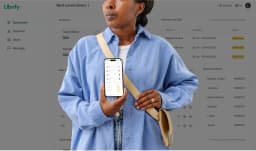
A setup that works well is two screens: the PC at the desk, and the owner app on their own phone. Both show the same live data, so a cash payment recorded at the desk at 7 AM is visible on the owner's phone before the morning shift settles.
Give the desk its own login instead of sharing yours. Librify's free plan includes one owner and one admin login. The admin login can run the counter but cannot open revenue, reports or expenses, which stay with the owner. Pro allows more owners and admins. Plan details are on Librify pricing.
What you need at the desk
- Any desktop or laptop that runs a current Chrome or Edge. An older PC is fine, because nothing is stored on its disk.
- An internet connection: broadband, or a phone hotspot as backup.
- The phone number used for the desk login, for the OTP.
- Optional: a second monitor or a large screen if staff keep the seat map open all day.
A printer is not required. Payment receipts on Mini and Pro go to students on WhatsApp, with a link to download the receipt.
If the internet goes down
Web-based software stops saving when the connection drops, and Google's own help page notes that some web apps do not work fully offline. Keep a small paper slip book at the desk: name, seat, amount, UPI or cash, time. When the connection returns, enter the slips in the app the same day, then file them. Put the router on the same inverter as the lights so a power cut does not also cut the internet.
If you run a book-lending library instead
Some owners searching for PC software actually run a book-lending library, a school library or a college library. For those, tools like Koha or e-Granthalaya, which manage catalogues, issue and return, are the right category. Librify is not built for book lending. The Koha vs study library software comparison explains the difference in detail.
Frequently asked questions
Is there library management software for PC that I can download?
You do not need a download for a study library. Librify runs in Chrome or Edge on any Windows, Mac or Linux computer at www.librify.in, and you can install it as a desktop app from the browser menu. Downloadable Windows programs for libraries are mostly built for book cataloguing, not seats and shifts.
Can I use the same Librify account on my phone and my PC?
Yes. Your data sits online, so the same students, seats and payments show on the Android owner app, the phone browser and the PC. A payment recorded at the desk PC appears on your phone as soon as both are online. Each login uses a phone number and OTP.
Does Librify work offline on a PC?
No. Librify needs an internet connection to load and save data, on a PC or a phone. A basic broadband line or a phone hotspot is enough. Keep a simple paper slip at the desk for the rare hour the internet is down, and enter those payments when it returns.
What computer do I need to run library software?
Any computer that runs a current version of Chrome or Microsoft Edge will do, including an old desktop or a basic laptop. There is nothing to install on the hard disk, so storage space and Windows version matter far less than with desktop software. You also need your phone nearby for the login OTP.
Library software PC me kaise chalaye?
Open Chrome or Edge on the PC, go to www.librify.in, and sign in with your mobile number and the OTP. To keep it like a normal app, open the browser menu and choose the option to install the page as an app. It then opens from the taskbar like any program.
Open librify.in on your desk PC and sign in with your phone number.
Free plan available. Paid plans from ₹59 a month.
Start free on Librify