
Add Multiple Admin and Staff Access
Delegate daily check-ins, fee collection, and seat allocation to staff by adding secure Admin or Co-Owner access, without sharing your main login.
Comprehensive Step-by-Step Guide
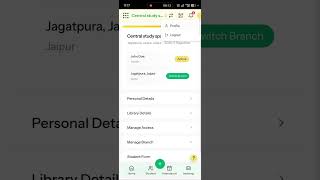
Official GuideWhat You'll Learn: • Why staff/admin management matters for a growing library • How to open Manage Access from your Profile • How to add a new Owner or Admin • How OTP verification keeps access secure Step-by-Step Guide: 1. Go to the Profile menu from the Librify Dashboard. 2. Open the Manage Access module. 3. Click Add Owner/Admin. 4. Enter the staff member's details — Name, Email, Phone Number, and WhatsApp. 5. Choose whether to make this person an Owner (full access) or keep them as an Admin (limited access). 6. Click Verify to complete secure OTP authentication. Note: • Owners get full access; Admins get limited access — you choose per person. • Multi-branch and multiple admin profiles is a Pro plan feature. • Only OTP-verified staff can access the dashboard — your main owner credentials are never shared. Pro Tip: Add Admin access for front-desk staff so they can handle check-ins and fee collection while you keep Owner-level control.
Need assistance setting up your library?
Get in touch with the Librify support team or explore our free app.
More Tutorials

How to Customize Student Registration Form

How to Add Student Using QR

How to Add New Student in Library

Librify App Basic Guide

How to Change Language in Library System

Library Payment Due Management
Library Expense Management
Student Registration via QR Code
Library Shift Management—Edit Shift Timings
Library Premium Plans—Upgrade & Renewal
Add New Library Branch—Multiple Branches

Edit Library Settings & Details—Profile Update