
Library Shift Management—Edit Shift Timings
Customize and update your library's shift timings—edit shift names, start/end times, and monthly fees in a few taps.
Comprehensive Step-by-Step Guide
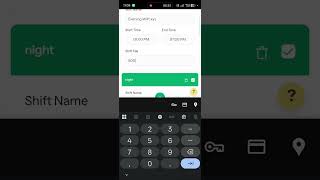
Official GuideWhat You'll Learn: • How to access the shift settings panel • How to edit shift name, start time, and end time • How to update the fee structure for a shift Step-by-Step Guide: 1. Go to your Owner Profile and open Library Details. 2. Open the Shift Details / Slots overview. 3. Select a shift and edit its name, start time, and end time. 4. Update the monthly fee for that shift. 5. Save the changes and let the app sync. 6. Verify the updated shift timings. Note: • Changes apply instantly across the app for all seats booked under that shift. Pro Tip: Review your shift timings every season (summer/winter) to match your library's actual footfall hours!
Need assistance setting up your library?
Get in touch with the Librify support team or explore our free app.
More Tutorials

How to Customize Student Registration Form

How to Add Student Using QR

How to Add New Student in Library

Librify App Basic Guide
How to Change Language in Library System

Library Payment Due Management
Library Expense Management
Add Multiple Admin and Staff Access
Student Registration via QR Code
Library Premium Plans—Upgrade & Renewal
Add New Library Branch—Multiple Branches
Edit Library Settings & Details—Profile Update