Library Seat Shift—Change Student Seat
Shift a student's seat allocation from the seat map dashboard—pick the effective date and a new available desk in seconds.
Comprehensive Step-by-Step Guide
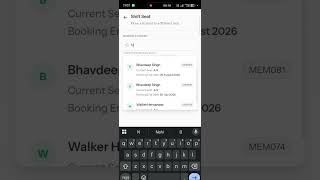
Official GuideWhat You'll Learn: • How to access the Shift Seat panel from the seat map dashboard • How to search for an active student • How to pick the effective date for the new seat • How to choose an available desk from the seating layout Step-by-Step Guide: 1. Open the seat map dashboard and click the Shift Seat icon. 2. Search for the student by name and confirm their current booking. 3. Pick the date from which the new seat allocation should apply. 4. Choose an available seat from the seating layout (e.g., B-65). 5. Process the shift to confirm. 6. Verify the updated seat booking on the selected date. Note: • The shift updates instantly across your digital registration ledger. Pro Tip: Use Shift Seat instead of removing and re-adding a student—it keeps their history intact!
Need assistance setting up your library?
Get in touch with the Librify support team or explore our free app.
More Tutorials
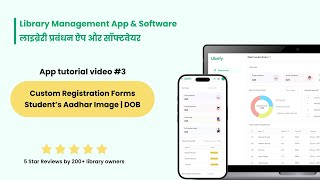
How to Customize Student Registration Form

How to Add Student Using QR
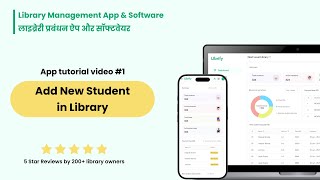
How to Add New Student in Library

Librify App Basic Guide
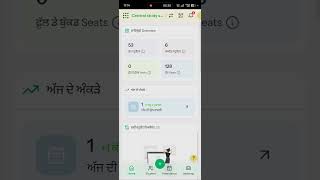
How to Change Language in Library System

Library Payment Due Management
Library Expense Management
Add Multiple Admin and Staff Access
Student Registration via QR Code
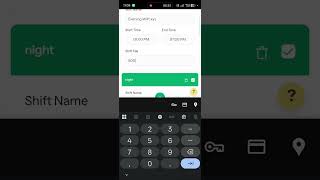
Library Shift Management—Edit Shift Timings
Library Premium Plans—Upgrade & Renewal
Add New Library Branch—Multiple Branches